

Application Description
Design your own custom cross-stitch patterns.
Cross Stitch Pattern Creator
Includes four free sample patterns. The download is free, with a $2.99 activation fee.
For the best experience, we recommend using a tablet due to the typical size of cross-stitch patterns.
Craft your unique cross-stitch designs with the Cross Stitch Pattern Creator.
To begin creating a pattern, tap the "Create a Cross Stitch Pattern" button.
The Cross Stitch Pattern Editor will open. Fill in the squares with your chosen DMC floss colors.
You can even add custom colors if desired.
Getting started is easy: Use the Pencil tool to fill squares in your pattern. Use the Eraser to clear filled squares.
Choose from over 80 decorative stamps and borders to enhance your cross-stitch pattern.
The toolbar buttons, from left to right, are:
DMC Floss Color – Select the thread color you wish to use.
Save – Save your pattern.
Pencil – Fill individual squares on your pattern.
Eraser – Remove filled squares and backstitch lines.
Backstitch – First, choose a color using the color button, then select the Backstitch tool to add outline stitching.
Backstitch Move – Select and drag an entire backstitch line to a new position.
Backstitch Move Stitch End – Select a backstitch; blue handles will appear at each end. Drag either handle to adjust the line.
Stamps – Add small, decorative cross-stitch motifs to your design.
Borders – Add selectable borders that automatically wrap around your pattern.
Dropper – Pick up a color from your pattern to use it elsewhere.
Bucket – Fill a contiguous area with the currently selected color.
Bucket+ – Replace one color in the pattern with the currently selected color.
Undo – Reverse your last change.
Redo – Restore a change you just undid.
Selection Box – Select an area of the pattern to cut, copy, rotate, or flip.
Cut – First, use the Selection Box to choose an area, then tap Cut to remove it.
Copy – First, use the Selection Box to choose an area, then tap Copy to duplicate it to the clipboard.
Paste – Insert the copied area onto your pattern. Drag the pasted selection to the desired location.
Rotate – Rotate the selected area or the entire pattern.
Flip Right/Left – Flip the selected area or entire pattern horizontally.
Flip Top/Bottom – Flip the selected area or entire pattern vertically.
Zoom In – Enlarge the pattern view.
Zoom Out – Reduce the pattern view.
Symbols – Display a unique symbol on each color to represent its value.
Picture – Select a photo from your device to convert it into a pattern.
Social Media – Share your pattern via email, text, or other platforms.
Resize Bars – Located at the bottom-right corner of your pattern. Drag them to adjust the pattern's dimensions.
Option Settings – Change the grid color, switch the fill style from Solid to X's, or hide the row/column counter.
Instruction Page – Shows the DMC colors used and the finished size for various Aida cloth counts.
Finished Product Page – Preview your pattern as a stitched piece. You can also change the background fabric color.
Screenshot


Reviews
Post Comments
Latest Articles
Expedition 33's Success Spurs Final Fantasy to Reconsider Turn-Based System
Following the triumph of Expedition 33, Final Fantasy might be returning to its turn-based origins. Continue reading to discover Square Enix’s perspective on turn-based combat and the company’s struggles after the departure of the series’ creator.Fin

Pixel Starships Unveils Cyanide & Happiness Collaboration Featuring New Characters and Wacky Humor
Pixel Starships injects fresh whimsy into its latest collaboration eventThe beloved webcomic Cyanide and Happiness enters the 8-bit intergalactic RPG arenaComplete themed missions and trade powerful weapons with newly introduced merchantsSavySoda has

Harry Potter Game Marks 7 Years with Real and Virtual Giveaways
A Harry Potter Butterbeer and Mugs Gift Set available nowOpportunity to win tickets to the Broadway production of Harry Potter and the Cursed ChildAdditional April events on the horizonFinished all your Valentine’s Day chocolates? Harry Potter: Hogwa
Apple Arcade brings Angry Birds Bounce, UNO: Arcade Edition and more this summer
UNO: Arcade Edition Leads June's Game Lineup Alongside Two Other TitlesAngry Birds Bounce Arrives July 3rd, Reviving Slingshot and Brick-Breaking GameplayJuly Also Features Kingdom Rush 5: Alliance TD+, Suika Game+ and MoreApple’s Design Awards recen
What to Expect from Samsung Unpacked in July 2025
Samsung is preparing to unfold an updated smartphone lineup on Wednesday, July 9th, at 10AM ET / 7am PT. The headline feature, assuming rumors are accurate, will be a collection of new foldables alongside Galaxy AI capabilities. After all, no major t
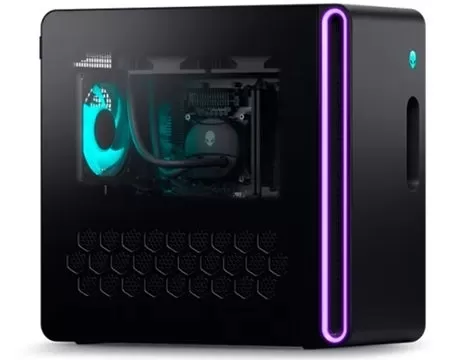
Dell Outlet Has an Alienware Aurora R16 RTX 5070 Ti Gaming PC for Just $1,575, Will Sell Out Quickly
Dell Outlet has just replenished its stock of refurbished Alienware Aurora R16 gaming PCs equipped with the RTX 5070 Ti. You can currently purchase one for only $1,575, complete with free shipping. Like new purchases, Dell Outlet systems come with a
Apps like Cross Stitch Pattern Creator
How to Draw Motorcycle
Art & Design丨31.9 MB
Marcella Matteoni
Art & Design丨12.0 MB


Artsy
Art & Design丨51.3 MB

Tokenframe
Art & Design丨38.1 MB

Abu Dhabi Art
Art & Design丨111.5 MB


Musei Italiani
Art & Design丨53.1 MB
Latest Apps


WhatsGPS
Auto & Vehicles丨77.8 MB


HG HYPER GRINDER
Lifestyle丨12.20M

Tor OBD2 Diagnostics
Auto & Vehicles丨10.6 MB


Ultimate Poser
Art & Design丨170.6 MB

Trending Apps
MORE +









Top News
MORE +

01
12-10
Civilization's Rebirth: Pre-Register for After Inc
Ndemic Creations, the studio behind the acclaimed Plague Inc., is launching a new game: After Inc. This game shifts the focus from unleashing devastating plagues to the monumental task of rebuilding civilization after the Necroa Virus, the notoriously challenging undead-creating disease from Plague
02
01-23
WWE 2K25 Set to Make Colossal Impact on January 27th
WWE 2K25: January 27th Holds the Key
Get ready, WWE 2K25 fans! January 27th is shaping up to be a major day for the franchise, with a teaser hinting at a significant reveal. The hype is building, fueled by cryptic messages from WWE's official Twitter account and the promise of more information by
03
01-21
Final Fantasy Updates Fix Controller Glitch
Patches for Final Fantasy VII Remake are now available on Steam, the Epic Games Store, and PlayStation 5. This update resolves issues with controller vibration motors. The game follows Cloud Strife, a former SOLDIER, as he joins Avalanche to prevent Shinra Electric Power Company from destroying th
04
02-24
Pokémon TCG Expansion Unveils Space-Time Adventure
Pokémon TCG Pocket's Space Time Smackdown Expansion: A Detailed Overview
Pokémon TCG Pocket has launched its latest major update, introducing the Space Time Smackdown expansion, a new set themed around Pokémon Diamond and Pearl. This expansion, available in Dialga and Palkia-themed booster packs, f
05
01-16
Zenless Zone Zero Confirms Version 1.5 Special Program Livestream Date and Time
SummaryZenless Zone Zero revealed the start date for Version 1.5 "Astra-nomical Moment" on January 10 at 19:30 (UTC+8).Version 1.5 plans to add S-Rank characters Astra Yao and Evelyn Chevalier.Not much else is known about Version 1.5, though recent leaks have teased plenty of new content and events
Topics
More +